If you haven’t used LinkedIn before, it’s basically social media for your career. You can network, find jobs, show off your skills, and even highlight the work your company or college is doing.
Think of LinkedIn as your personal brand that’s working 24/7 to promote you – even while you’re doing something else. It’s worth the effort to make it stand out because it’s often the first thing a recruiter or potential employer will check out.
You can also follow companies or people you admire to see what’s going on in your dream industries. If your profile is solid, it instantly makes you look professional online.
Setting up a LinkedIn account is easy. Here’s how to do it…
Step 1: Sign up
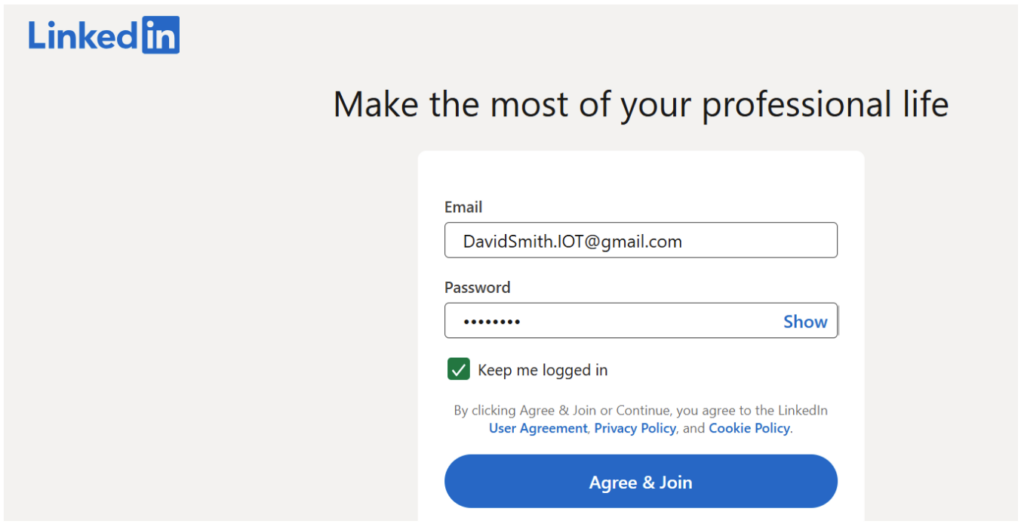
Sign up with your email and follow the step-by-step instructions. You’ll enter your name, location, and pick what kind of jobs you’re interested in. At this stage, you can also start connecting with people you know and follow companies you’re curious about.
Step 2: Build your profile
Here’s where the fun part begins – your profile is basically your online portfolio. Let’s break it down:
Profile pic
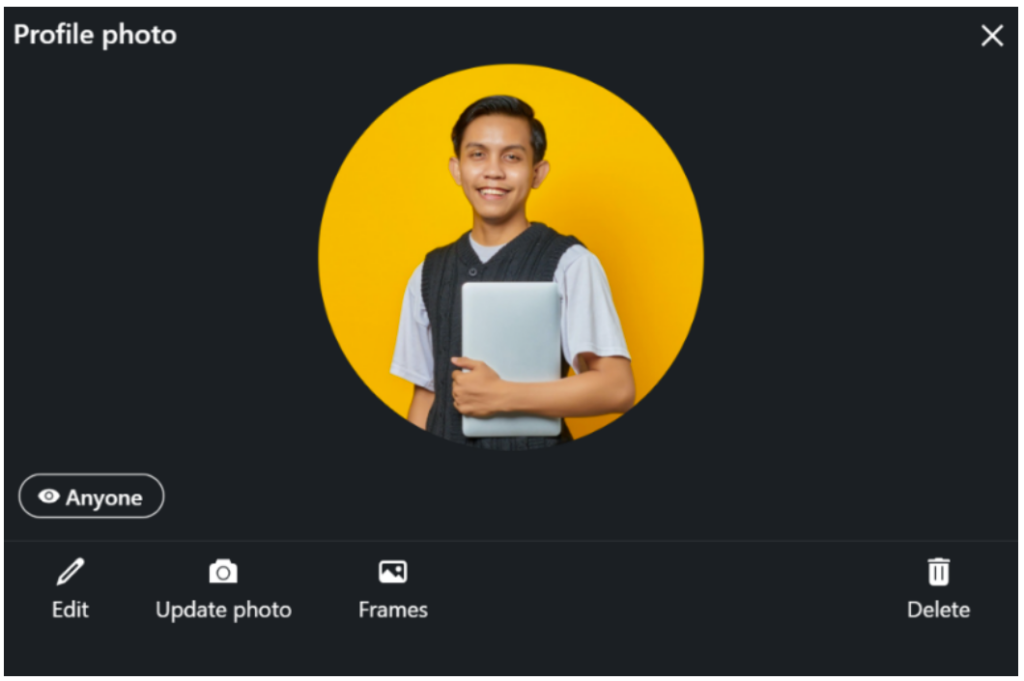
Imagine you’re scrolling through Instagram. Would you stop at a blurry or messy photo? Probably not. Your LinkedIn profile pic should be clean, professional and show your face clearly smiling!
Click the camera icon and upload your photo.
Our tip: A clear, friendly shot with a plain background looks way better than a selfie in a messy room.
Banner Image
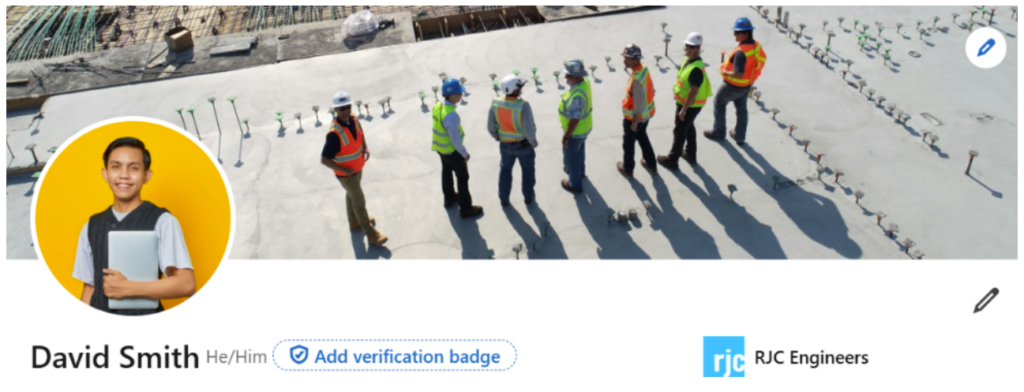
Your banner is like the background for your profile – it gives extra context about who you are. Click the camera icon to upload a photo or pick one of LinkedIn’s preset options.
Think about what makes you stand out. Do you work in a factory, do research or speak at events? Include a relevant image if you can.
Once uploaded, you should make sure it fits into the picture box – especially if it has text. You don’t want anything chopped off, or a key part of the image hidden behind the profile photo!
Our tip: Make sure you have permission if it’s someone else’s photo.
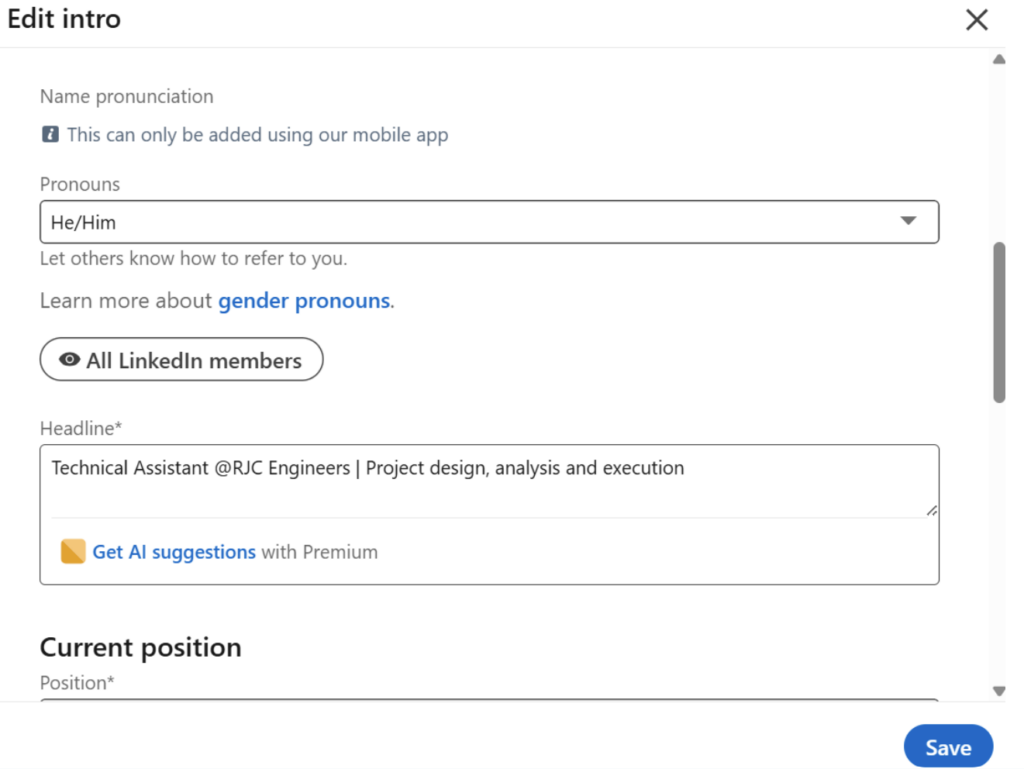
Headline
Most people just put their job title here, but your headline is your chance to shine. You only have 220 characters so use them wisely!
Sum up what you do, who you help and how you do it.
Our tip: Keep it short and snappy!
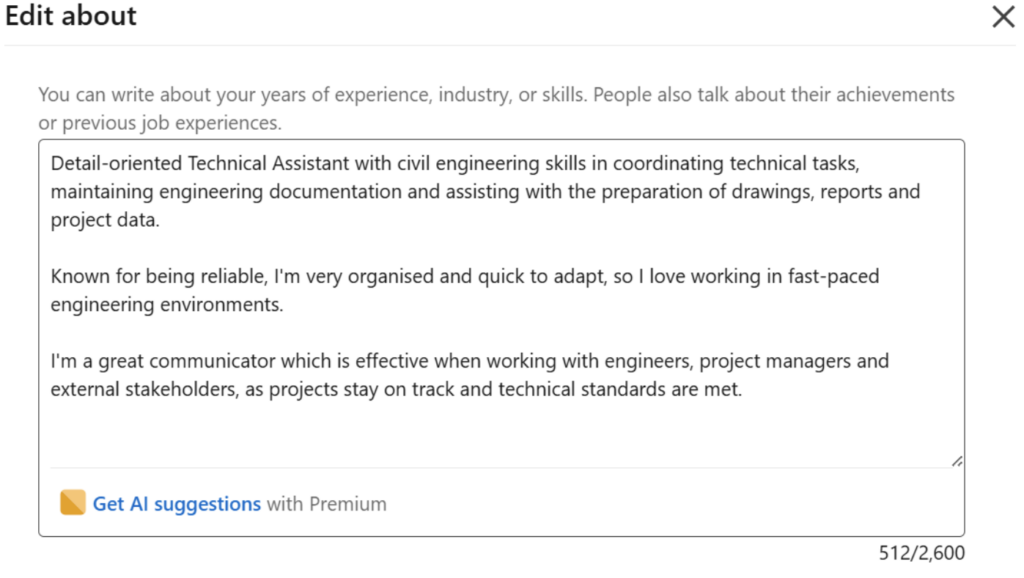
About
A lot of people skip this summary section or fill it with boring corporate words. Don’t.
This is your chance to show off what you’re passionate about and tell your story. Why do you do what you do? What gets you excited about your field?
Our tip: If writing isn’t your thing, tools like AI can help you draft it – but make sure it still sounds like you.
Experience
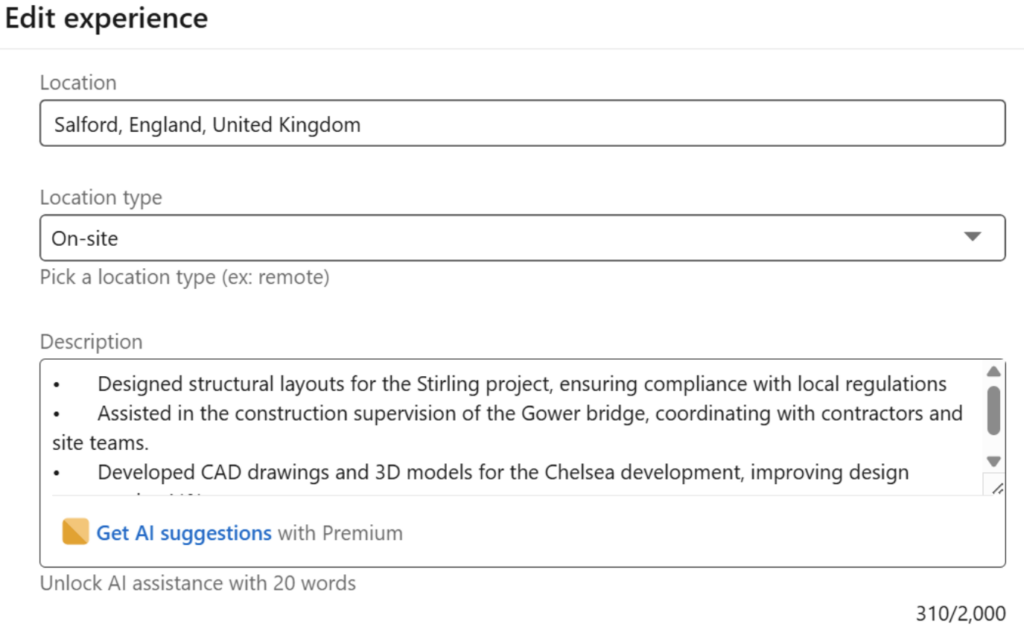
This is where you talk about what you’ve done so far in your career. If you’re looking for your first job, include school projects, internships, volunteering or skills you’ve learned. Bullet points are totally fine to use here.
For example:
Designed structural layouts for the Stirling project, ensuring compliance with local regulations
Assisted in the construction supervision of the Gower bridge, coordinating with contractors and site teams.
Developed CAD drawings and 3D models for the Chelsea development, improving design accuracy by 41%.
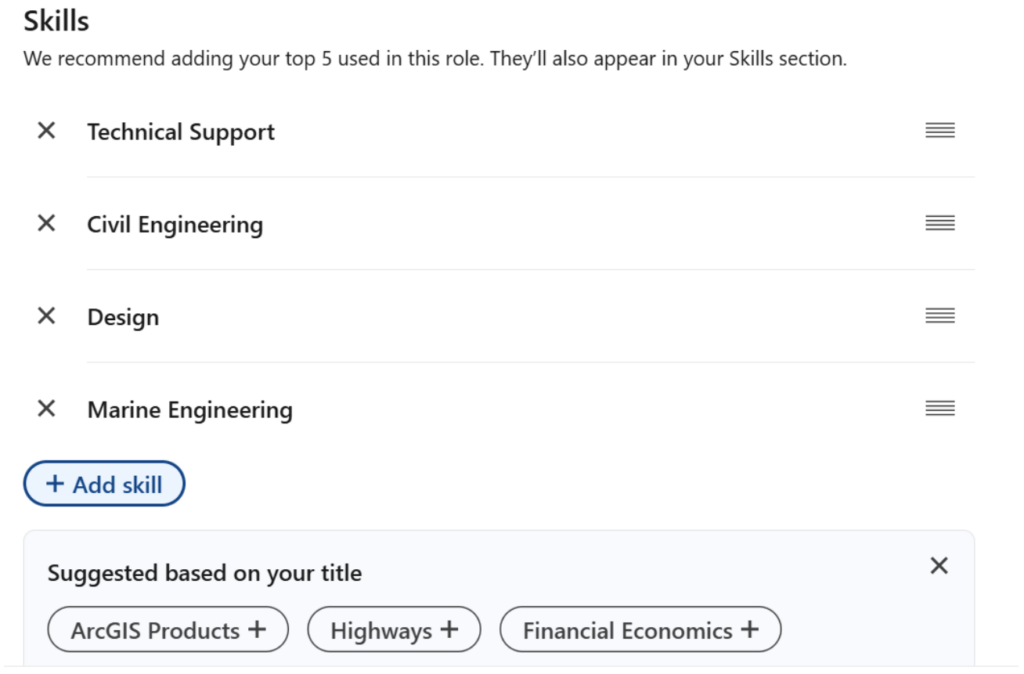
There is also a section here where you can select or add in some skills.
Our tip: Don’t be shy – highlight your achievements and outcomes.
Education
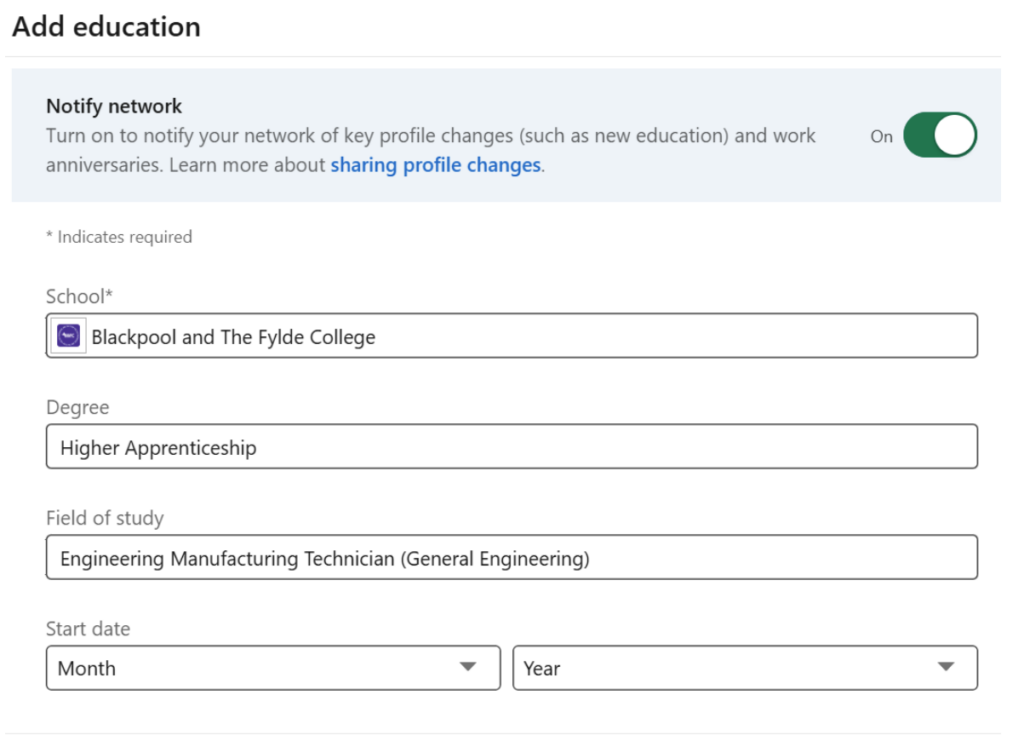
In this section there’s plenty of room to list any qualifications you gained at college or university. You can also put dates of when you were there.
Education
LinkedIn lets people endorse your skills, which acts like social proof that you can actually do what you claim!
Recommendations are like mini reviews from co-workers, clients or mentors. You can request them from people you’re connected with on LinkedIn.
Our tip: You could try writing a recommendation for someone first – it’s a nice gesture, and they’ll be happy to return the favour.
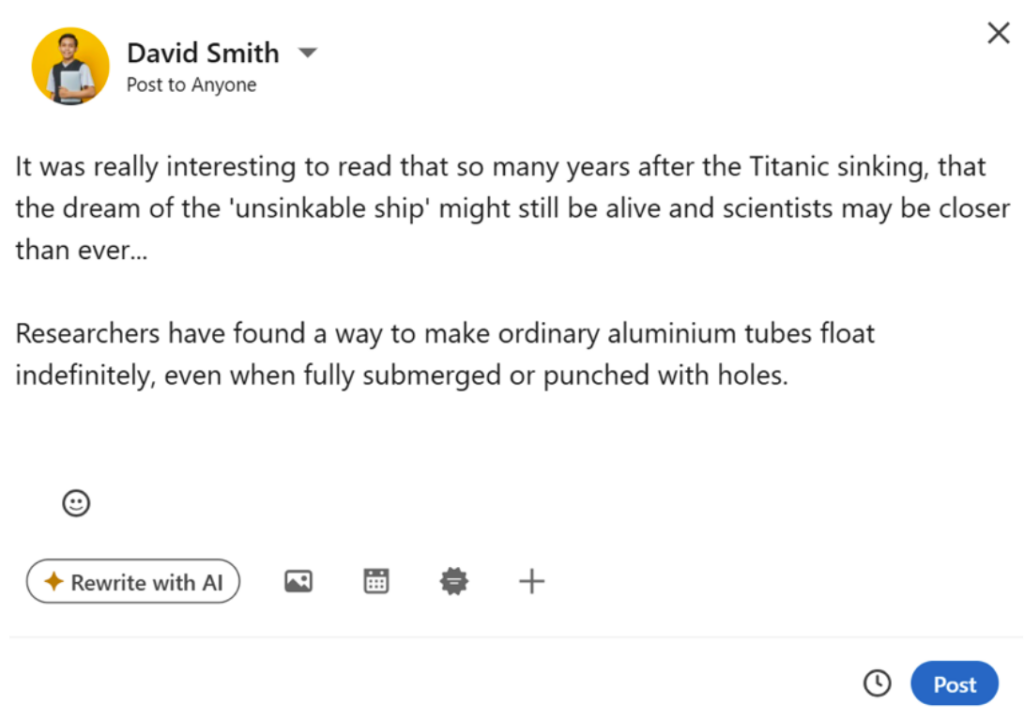
Posting Updates
Every time you post, your network can see what you’re up to. Share cool projects, interesting research, things you’ve learned in work or insights from your industry.
If people comment on your posts, take time to reply. Just remember to be polite and respectful, even if they say they disagree with something in your post.
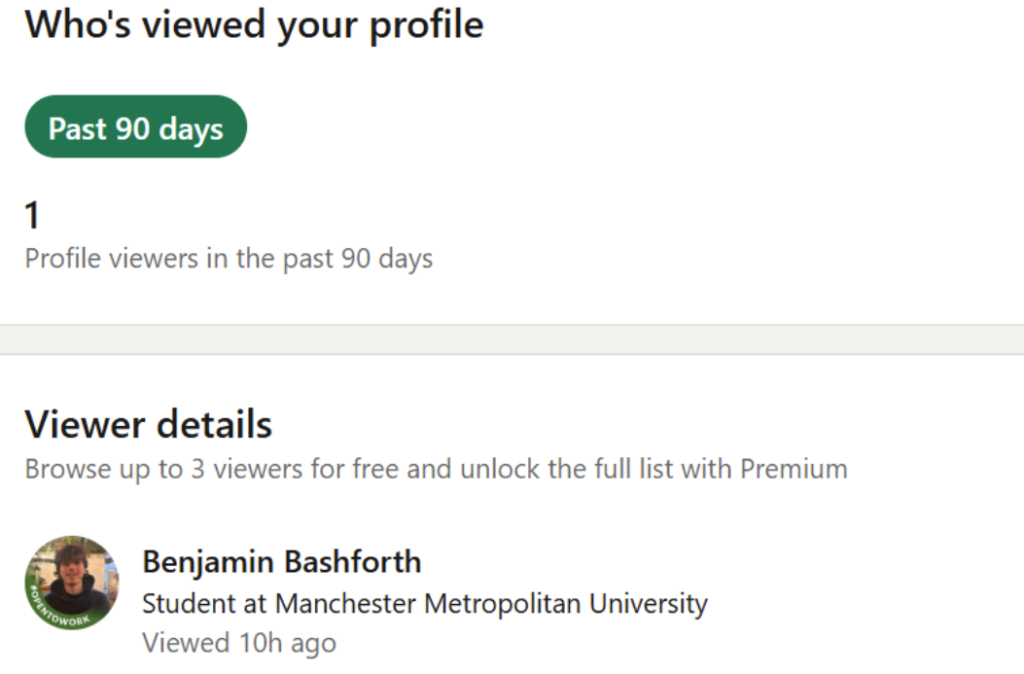
You can also see who has viewed your profile, unless they are looking in incognito mode!
Remember to keep your profile updated and post regularly.
If you’re stuck on what to post, check out our other guide: What to Post About on LinkedIn.